
Quick Answer
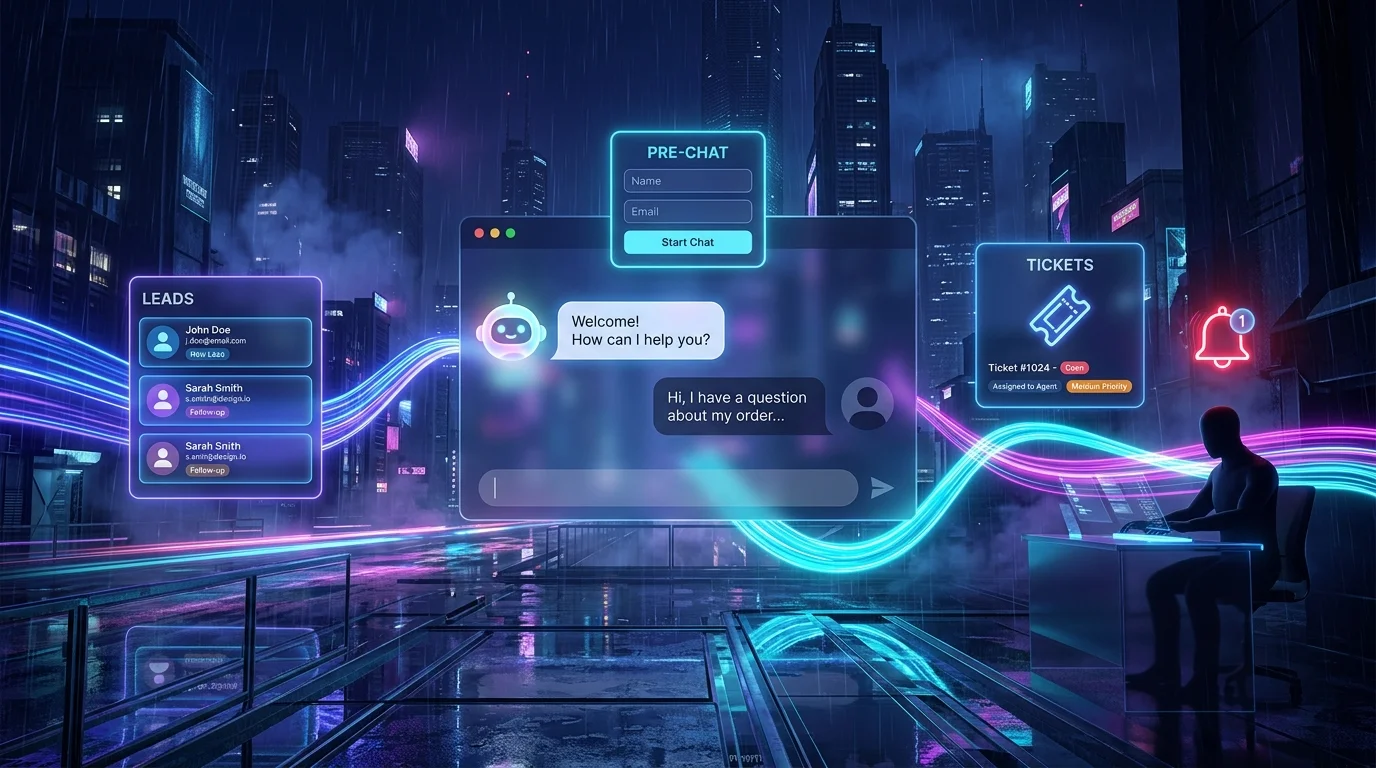
Chatbot lead capture means asking a visitor for their name and email before the chat starts, so every conversation can become a contact you can follow up. In the RSFlowHub chat widget you switch on the pre-chat form, and turn on Talk to Human so stuck visitors can open a support ticket. Leads and tickets appear in your dashboard linked to the conversation they came from, and you can get an email alert for each one.
A chatbot that answers questions is useful. One that also tells you who asked, and hands the hard cases to your team without losing context, is a small sales and support desk. This guide shows how to set up lead capture and support tickets in the RSFlowHub chat widget, how to word the forms so people actually fill them in, and how to handle the data responsibly.
Why capture leads inside the chat
Most visitors who start a chat never fill in a contact form. They have a question, they ask it, and they leave, and you never learn who they were. Asking for a name and email at the start of the chat, in exchange for an instant answer, is a fair trade that most people accept. You get a contact, and the conversation that follows tells you exactly what they wanted, which is more than a bare email address ever does.
Setting up the pre-chat form
- Open your chatbot in Dashboard → Chatbots and go to the Widget tab.
- Switch on Collect visitor details. The widget then asks for name and email before the chat starts.
- Add a short privacy notice under the message box and, if you serve visitors who expect it, switch on the consent checkbox.
- Save. Changes appear on your site the next time a page loads, with no re-install.
If you prefer to control this per page, the script tag accepts data-lead-capture with the value none or prechat, which overrides the dashboard setting for that page:
<script src="https://rsflowhub.com/widget/v1/rsflowhub-widget.js"
        data-widget-token="wt_sec_YOUR_WIDGET_TOKEN"
        data-lead-capture="prechat"
        async></script>
Saved leads are listed in the Leads tab of the chatbot and can be exported as CSV or deleted one by one.
Wording that gets the form filled in
- Give a reason. "Tell us who you are and we will follow up if we cannot answer here" works better than a bare "Enter your details".
- Ask for less. Name and email are enough for most sites. Every extra field costs you completions.
- Be honest about AI. Say that replies are generated by AI and how long chats are kept, for example "Replies are generated by AI. Chats are kept for 90 days."
- Use quick replies. Up to four one-tap suggestions such as "Pricing" or "Talk to a person" get hesitant visitors started.
On pages where visitors are in a hurry or worried, such as a support or billing page, consider turning pre-chat capture off with
data-lead-capture="none" and relying on Talk to Human instead. A form in front of an urgent question feels like a barrier.
Human handoff and support tickets
No bot should be a dead end. Switch on Human handoff and the widget shows a Talk to Human option that opens a short ticket form. When a visitor submits it:
- A support ticket is created and listed in the Tickets tab.
- It is linked to the conversation, so your team reads what the bot already said instead of asking the visitor to repeat themselves.
- You can change its status as you work on it, and delete it when it is no longer needed.
If you set an alert address, replying to a ticket email answers the visitor directly, so simple tickets can be handled from your inbox.
Email alerts for leads and tickets
In the widget settings, turn on email alerts to be notified when a visitor leaves their details or opens a ticket. You can send alerts to a different address from your account, such as a shared support@ mailbox. Alert emails are capped per hour per chatbot to protect your inbox during an attack; everything is still saved in the dashboard even when an email is skipped.
A simple follow-up workflow
- Morning: open Tickets, sort out anything new, and reply from the alert email or your help desk.
- Twice a week: read the Leads tab. Open the conversation behind each lead and write a one-line note on what they wanted.
- Weekly: look at the questions the bot could not answer. Answering them once adds that knowledge to the chatbot, so the same question is handled automatically next time.
- Monthly: export leads as CSV into your CRM or spreadsheet and clear anything you no longer need.
Consent, retention and erasure
Leads and tickets are personal data, so decide the rules before you collect them:
- What is stored: the chat messages, the details a visitor types into the form (name, email, phone or company), support tickets, and the time they ticked the consent box. IP addresses are used only for short-lived rate limiting and are not saved with conversations. In the visitor's browser the widget keeps only the conversation id, whether the form was completed, and a cached copy of your settings in localStorage, and sets no cookies.
- Retention: choose 30, 90, 180 or 365 days, or "until I delete it". Each night older conversations, leads and resolved or closed tickets are deleted. Open tickets are kept.
- Access and erasure: in the Leads tab enter the visitor's email under Privacy requests, then download their data as a JSON file or erase it permanently.
- AI processing: messages are processed by AI providers to write replies, so say so in your notice.
You remain responsible for your own privacy policy and legal basis; these are the tools to support it.
Protecting credits and your inbox
- Daily message limit: caps visitor messages per day. Visitors see "We've reached today's chat limit" once it is used up, and you are emailed at 80% and when it is reached.
- Monthly spending limit: stops credit use at a ceiling you choose.
- Visitor limits: messages up to 2,000 characters, 100 messages per conversation and about 20 messages per minute per visitor IP. Lead and ticket forms are limited to a few submissions per minute.
- Allowed websites: restrict the token to your own domains.
Common mistakes to avoid
- Collecting data you never use. If you will not follow up on phone numbers, do not ask for them.
- No retention rule. Leave it on "until I delete it" and old chats pile up for years. Pick a number of days.
- Ignoring the Tickets tab. A handoff button that nobody answers is worse than no button. Set an alert address someone reads.
- Hiding that it is a bot. Say the replies are AI-generated and keep a human route open.
- Never reviewing unanswered questions. They are the fastest way to improve the bot.
Starting from scratch? Follow How to Add an AI Chatbot to Any Website first. For help writing what your bot says, see AI Prompts for Customer Support.
Capture Leads and Tickets with the Chat Widget
The pre-chat form, Talk to Human and email alerts are built into the widget. Setup steps are in the chat widget docs.
See the Chat Widget →Key Takeaways
- Ask for a name and email at the start of the chat, in exchange for an instant answer.
- Keep the form short and explain why you ask; override it per page with data-lead-capture.
- Always offer Talk to Human, so tickets arrive linked to the conversation.
- Use email alerts with an address someone actually reads.
- Choose a retention period and know how to download or erase one person's data.
- Review the questions the bot could not answer every week to improve it.

No comments yet
Be the first to share your thoughts on this article!